Medical Code Search

Free Form Medical Search
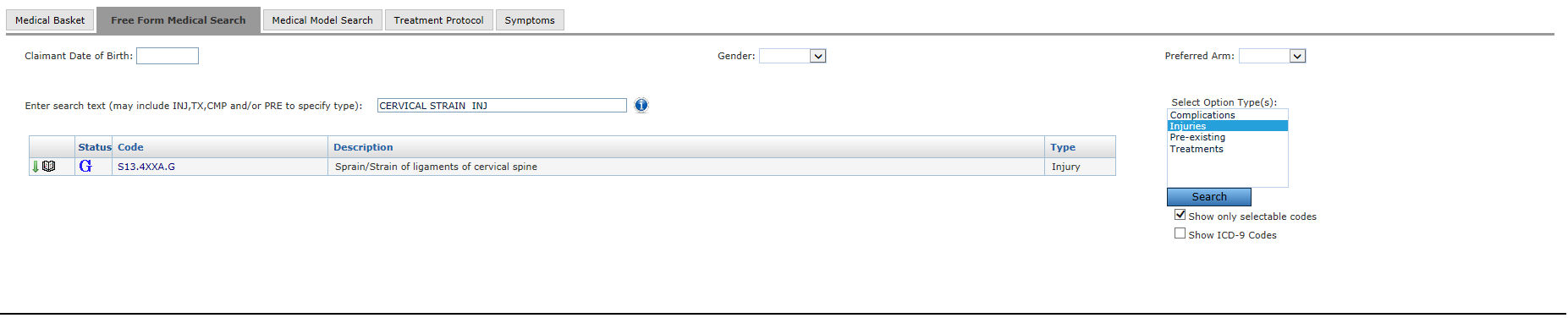
From the Free Form Medical Search sub-tab, a user can type an ICD-10 code or a description of the injury, treatment, complication, or preexisting condition in the blank field. For example, type “cervical sprain” or the ICD-10 code S13.4XXA, and then select the  button. A list of codes will be returned. Simply locate the proper code from the list and select the
 icon to place the code in the Medical List. The search can be refined by selecting Complications, Injuries, Treatments, or Pre-existing from the box on the top right of the blank field. If more information is needed on a code, the
  icon next to the code can be selected, which will display the Medical Library entry for that code. Selecting the code itself will display the code details. Once entry is complete, select another tab or sub-tab to exit the page. Text search defaults to the ICD10 code set.
Medical Model Search
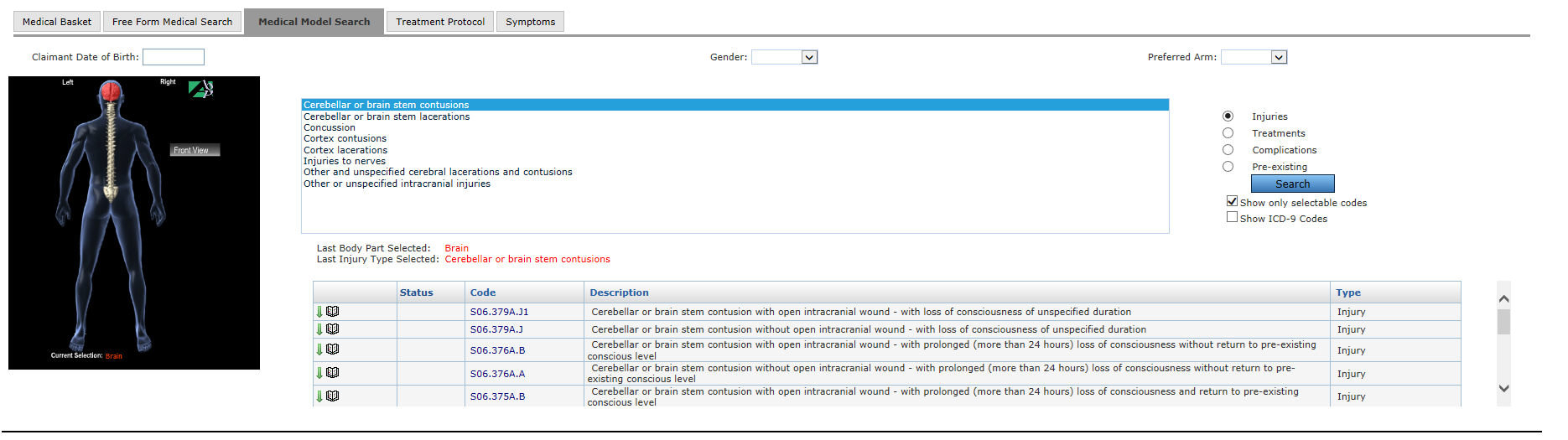
This method of searching is accessed by clicking the Medical Model Search sub-tab.
Medical Model Search employs a visual “point and click” model to locate and attach a medical code. Selecting a location on the anatomical image to the left of the panel highlights the corresponding body part. Two controls, a group of radio buttons and a selection box, located in the top right section of the panel work together to further define the search. The items displayed in the selection box are based on the category selected using the radio buttons. Once the body part has been selected, a radio button must also be selected to indicate if the search is for an injury, treatment, complication or pre-existing condition. Highlight an item in the container box to further refine the search and select. Select the proper code with the icon. If more information is needed on a code, the icon next to the code can be selected, which will display the Medical Library entry for that code. Selecting the code itself will display the code details. Once entry is complete, select another tab or sub-tab to exit the page. Text search defaults to the ICD10 code set.